Automating Jenkins Deployment on AWS Using Terraform
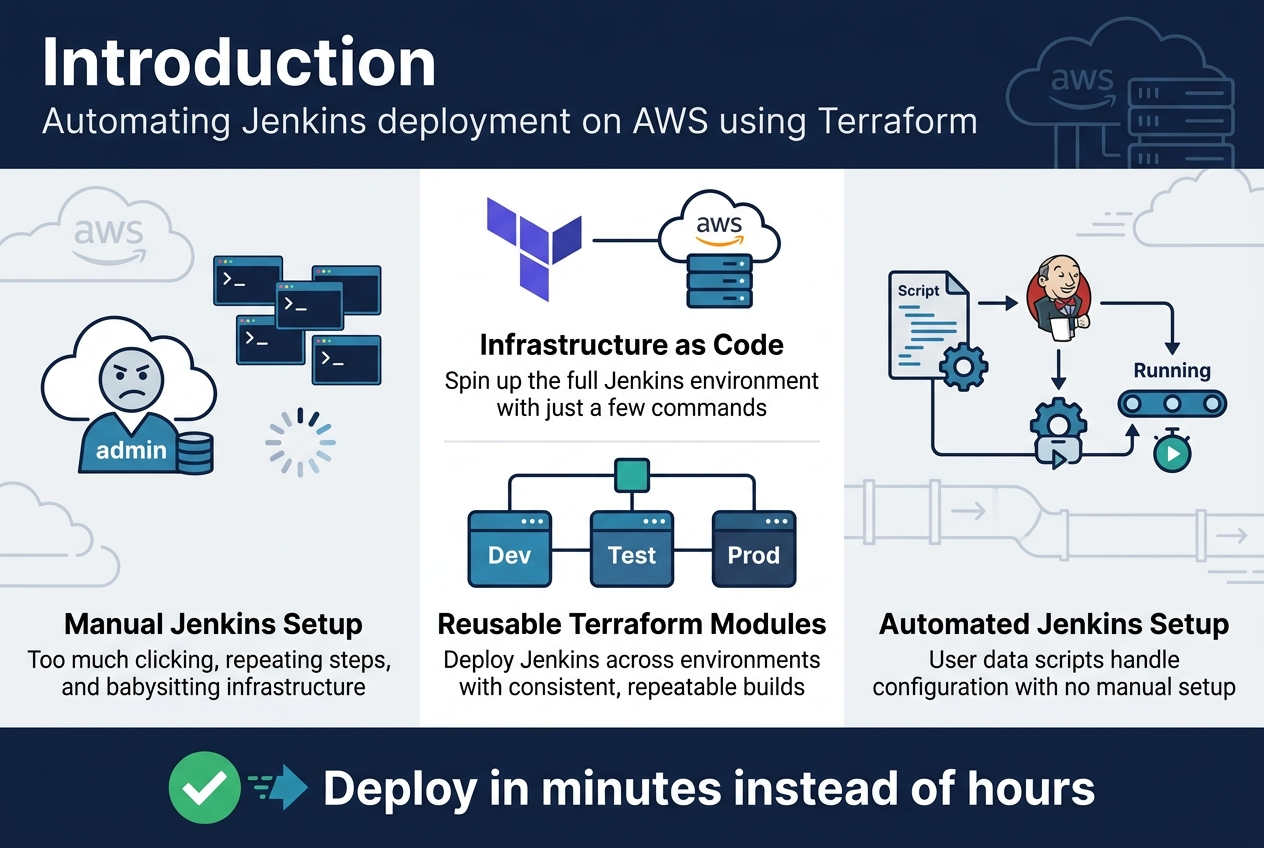
Setting up Jenkins on AWS manually? That’s a lot of clicking through consoles and repeating the same steps every time you need a new environment. Automating Jenkins deployment on AWS using Terraform eliminates the tedious work and gives you consistent, repeatable infrastructure every single time.
This guide is perfect for DevOps engineers, cloud architects, and development teams who want to streamline their Jenkins CI/CD automation and stop babysitting infrastructure deployments.
We’ll walk through creating Terraform infrastructure as code that spins up your entire Jenkins environment with just a few commands. You’ll learn how to build reusable Terraform modules that make deploying Jenkins across different environments dead simple. Plus, we’ll show you automated Jenkins setup techniques using user data scripts that get your CI/CD pipeline running without any manual configuration steps.
By the end, you’ll have a rock-solid Jenkins AWS infrastructure that deploys in minutes instead of hours.
Setting Up Your AWS Environment for Jenkins Deployment
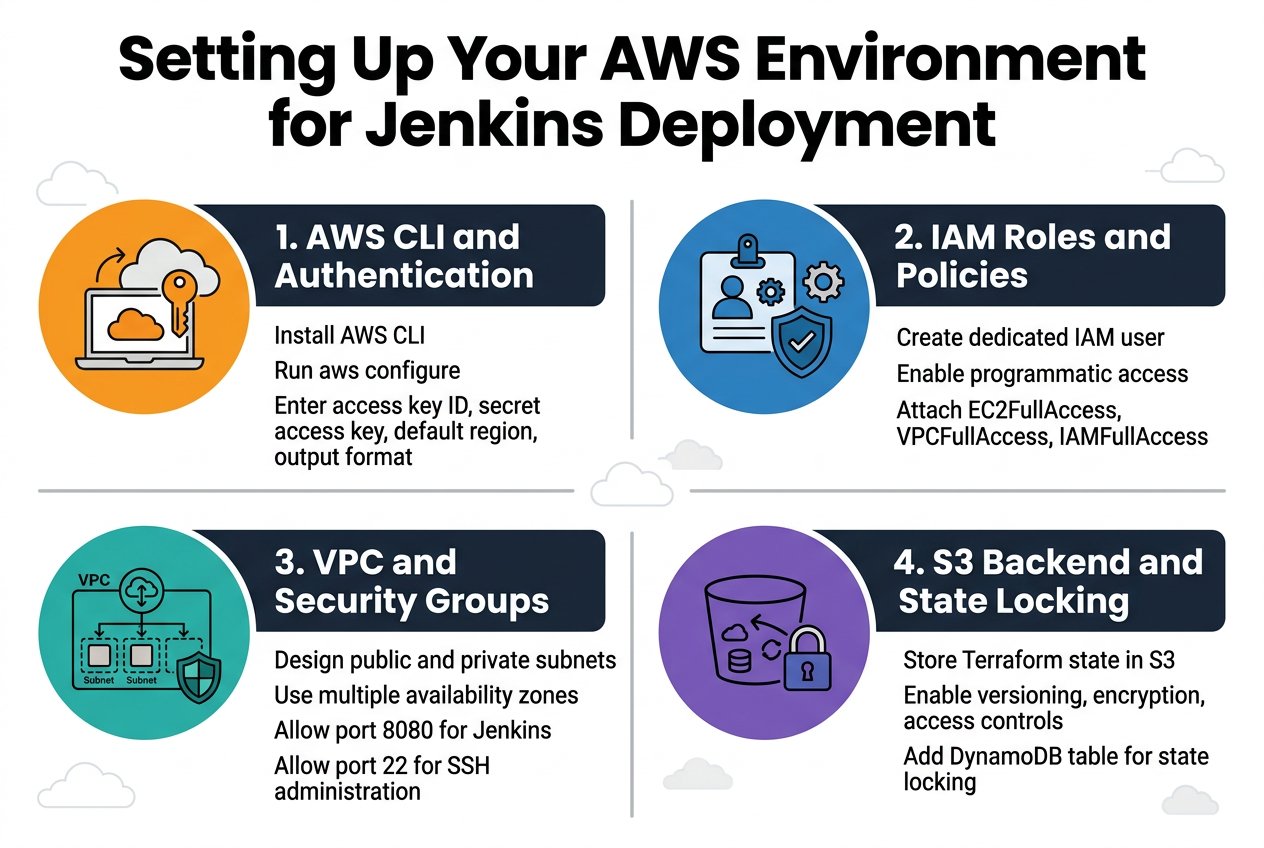
Configuring AWS CLI and Authentication Credentials
Installing the AWS CLI creates the foundation for your Jenkins automation AWS deployment. Download the latest version from Amazon’s official website and run the installation wizard. After installation, configure your credentials using aws configure command, entering your access key ID, secret access key, default region, and preferred output format.
Creating IAM Roles and Policies for Terraform Access
Your Terraform Jenkins deployment requires specific IAM permissions to provision AWS infrastructure. Create a dedicated IAM user with programmatic access and attach the necessary policies including EC2FullAccess, VPCFullAccess, and IAMFullAccess. This ensures your Terraform AWS integration can create and manage all required resources for your automated Jenkins setup.
Establishing VPC and Security Group Requirements
Planning your network architecture determines the success of your AWS Jenkins infrastructure. Design a VPC with public and private subnets across multiple availability zones for high availability. Configure security groups to allow HTTP traffic on port 8080 for Jenkins access, SSH on port 22 for administration, and any additional ports your CI/CD pipeline requires.
Setting Up S3 Backend for Terraform State Management
Terraform infrastructure as code requires centralized state management for team collaboration. Create an S3 bucket with versioning enabled to store your Terraform state files securely. Configure bucket encryption and implement proper access controls to protect your infrastructure state. Add a DynamoDB table for state locking to prevent concurrent modifications during your Jenkins deployment pipeline operations.
Installing and Configuring Terraform for AWS Integration
Downloading and Installing Terraform on Your Local Machine
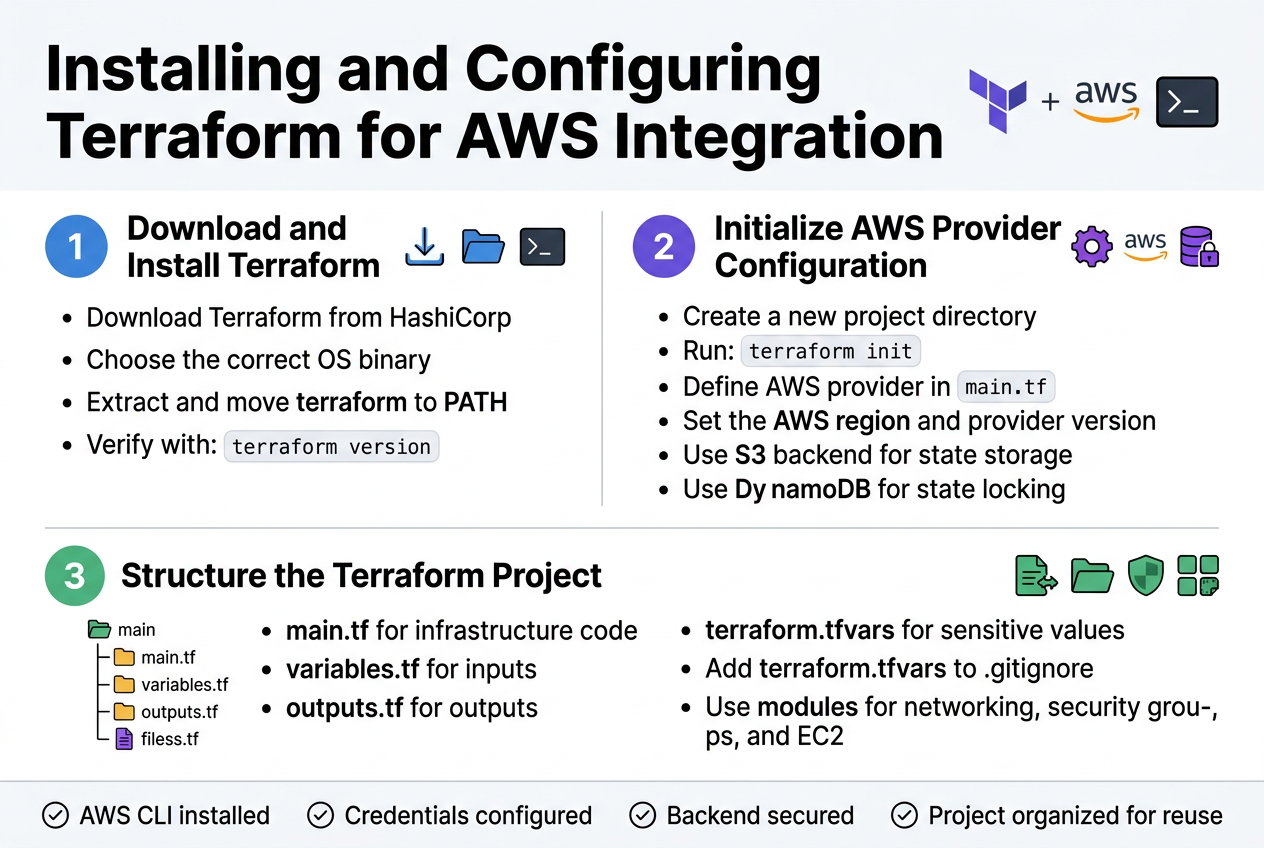
Begin by downloading Terraform from HashiCorp’s official website, selecting the appropriate binary for your operating system. Extract the downloaded archive and move the terraform executable to a directory in your system PATH, such as /usr/local/bin on macOS/Linux or C:\Windows\System32 on Windows. Verify the installation by running terraform version in your terminal.
For seamless AWS integration, install the AWS CLI alongside Terraform to manage your credentials effectively. Configure your AWS access keys using aws configure or set them as environment variables. This setup enables Terraform to authenticate with your AWS account and provision Jenkins infrastructure resources automatically.
Initializing Terraform Provider Configuration for AWS
Create a new directory for your Jenkins deployment project and initialize it with terraform init. Define your AWS provider configuration in a main.tf file, specifying the region and any required provider version constraints. Include your provider block with the AWS region where you plan to deploy your Jenkins infrastructure.
Set up your Terraform backend configuration to store state files securely, preferably using an S3 bucket with DynamoDB for state locking. This configuration ensures your Terraform state remains consistent across team deployments and prevents conflicts during concurrent operations.
Structuring Your Terraform Project Directory
Organize your Terraform project with a clear directory structure that separates concerns and promotes maintainability. Create separate files for variables (variables.tf), outputs (outputs.tf), and main infrastructure code (main.tf). Store sensitive values in a terraform.tfvars file and add it to your .gitignore to prevent credential exposure.
Consider implementing a modular approach by creating subdirectories for different infrastructure components like networking, security groups, and EC2 instances. This structure makes your Jenkins automation AWS deployment more scalable and allows for easy reuse across different environments while maintaining clean, readable code.
Creating Terraform Infrastructure Code for Jenkins
Writing EC2 Instance Configuration with Optimal Specifications
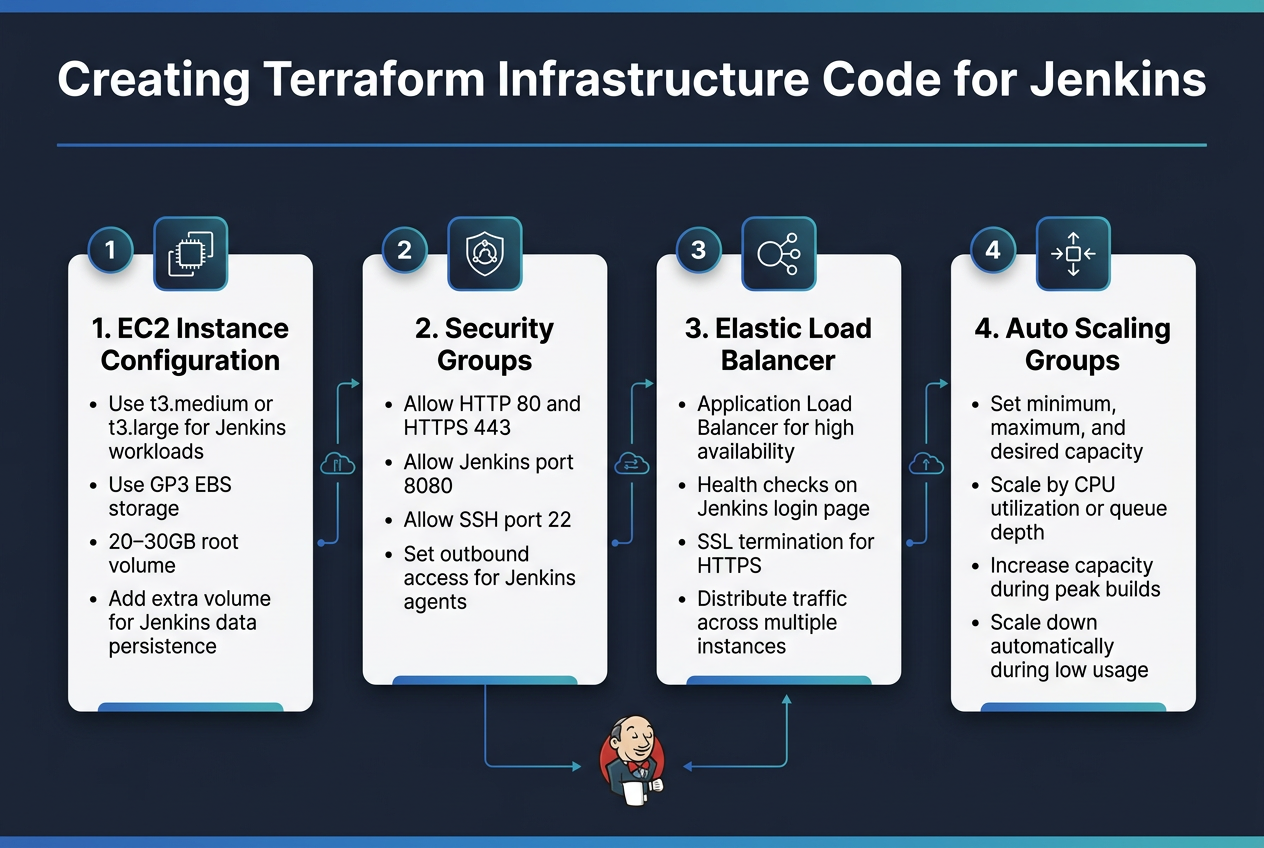
The foundation of your Jenkins automation AWS infrastructure starts with properly configured EC2 instances. Your Terraform AWS integration requires selecting instance types that balance cost and performance – typically t3.medium or t3.large instances work well for most Jenkins workloads. Configure your instances with sufficient storage using GP3 EBS volumes, typically 20-30GB for the root volume and additional volumes for Jenkins data persistence.
Defining Security Groups for Jenkins Access and Communication
Security groups act as virtual firewalls controlling traffic to your Jenkins deployment pipeline. Create dedicated security groups allowing HTTP/HTTPS access on ports 80 and 443 for web traffic, plus port 8080 for direct Jenkins access during initial setup. Include SSH access on port 22 for administrative tasks and configure outbound rules for Jenkins agents to communicate with the master server.
Setting Up Elastic Load Balancer for High Availability
An Application Load Balancer ensures your automated Jenkins setup remains accessible even during instance failures or maintenance. Configure health checks pointing to Jenkins’ login page and set up SSL termination for secure HTTPS connections. The load balancer distributes traffic across multiple Jenkins instances, providing seamless failover capabilities for your AWS DevOps automation workflow.
Configuring Auto Scaling Groups for Dynamic Resource Management
Auto Scaling Groups enable your Terraform infrastructure as code to automatically adjust Jenkins capacity based on demand. Set minimum, maximum, and desired capacity values that align with your build workload patterns. Configure scaling policies that respond to CPU utilization or queue depth metrics, ensuring your Jenkins AWS EC2 deployment can handle varying workloads while optimizing costs through automatic scale-down during low usage periods.
Automating Jenkins Installation Through User Data Scripts
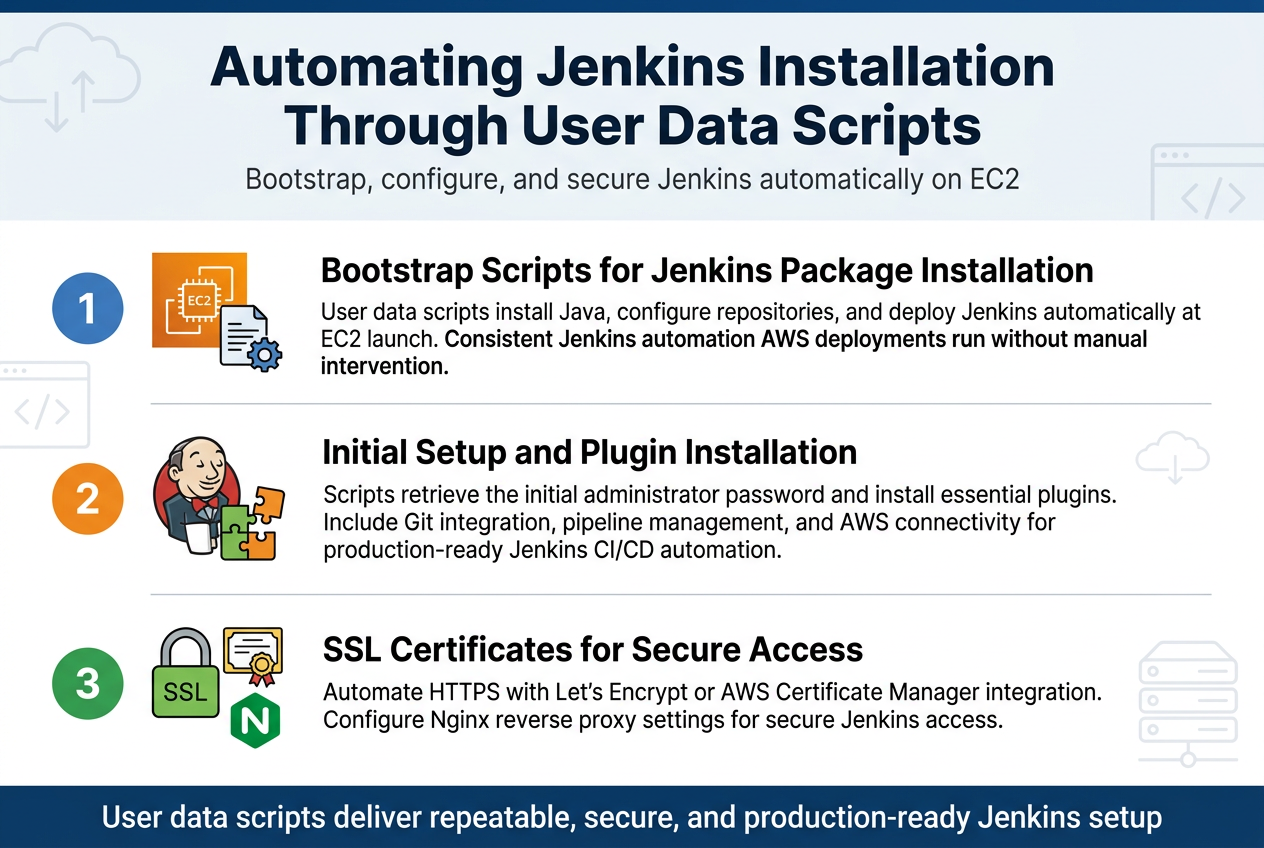
Creating Bootstrap Scripts for Jenkins Package Installation
User data scripts provide the foundation for automating Jenkins installation during EC2 instance launch. These bootstrap scripts handle Java installation, repository configuration, and Jenkins package deployment without manual intervention. The scripts run automatically when your AWS instance boots, ensuring consistent Jenkins automation AWS deployments across your infrastructure.
Configuring Jenkins Initial Setup and Plugin Installation
Automated Jenkins setup requires pre-configured scripts that handle initial administrator password retrieval and essential plugin installation. Your Terraform Jenkins deployment can include plugin lists for Git integration, pipeline management, and AWS connectivity. This automated approach eliminates manual configuration steps and ensures your Jenkins CI/CD automation environment is production-ready immediately after deployment.
Setting Up SSL Certificates for Secure Access
SSL certificate configuration through user data scripts secures your Jenkins instance with HTTPS encryption. The automation process includes certificate generation using Let’s Encrypt or AWS Certificate Manager integration. Your Terraform infrastructure as code can automatically configure reverse proxy settings with Nginx, ensuring secure Jenkins access while maintaining the automated Jenkins setup workflow for production environments.
Implementing Terraform Modules for Reusable Infrastructure
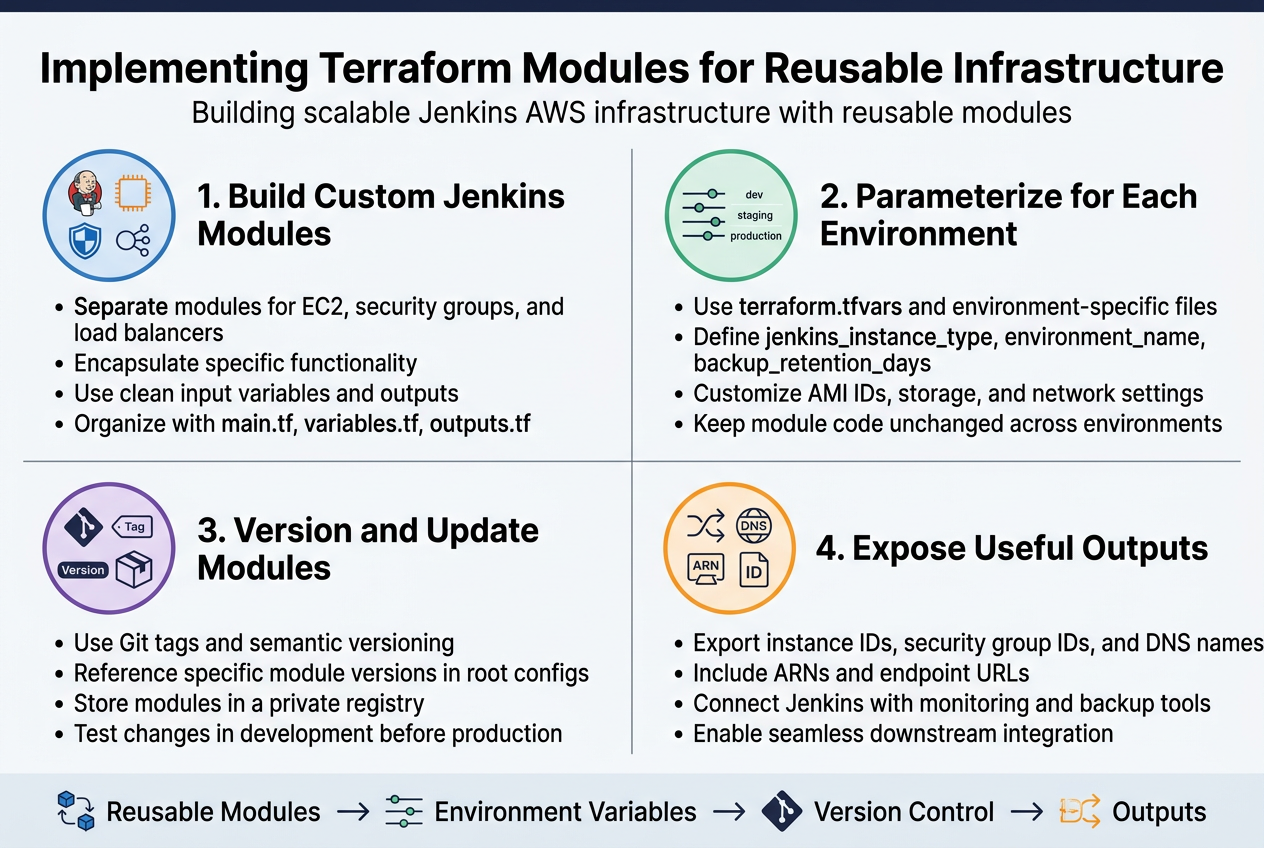
Building Custom Modules for Jenkins Components
Creating reusable Terraform modules transforms your Jenkins automation AWS infrastructure into manageable, standardized components. Design separate modules for core Jenkins elements like the EC2 instance, security groups, and load balancers. Each module should encapsulate specific functionality while maintaining clean interfaces through well-defined input variables and outputs.
Structure your modules with clear directory hierarchies containing main.tf, variables.tf, and outputs.tf files. This approach enables consistent Terraform Jenkins deployment across multiple environments while reducing code duplication and potential configuration drift.
Parameterizing Module Inputs for Different Environments
Environment-specific parameters make your Jenkins CI/CD automation adaptable across development, staging, and production environments. Define variables for instance types, AMI IDs, storage configurations, and network settings. Use terraform.tfvars files or environment-specific variable files to customize deployments without modifying core module code.
Consider parameters like jenkins_instance_type, environment_name, and backup_retention_days to control resource sizing and operational behavior. This flexibility ensures your AWS Jenkins infrastructure scales appropriately for each environment’s requirements.
Managing Module Versioning and Updates
Version control your Terraform infrastructure as code modules using Git tags and semantic versioning. Reference specific module versions in your root configurations to prevent unexpected changes during deployments. Create a module registry or use Terraform Cloud’s private registry for centralized module distribution and version management.
Establish update procedures that include testing module changes in development environments before promoting to production. Document breaking changes and migration paths to maintain stability across your automated Jenkins setup while enabling continuous improvement.
Creating Output Values for Resource References
Well-designed outputs enable seamless integration between Jenkins modules and other AWS resources. Export critical values like instance IDs, security group IDs, and DNS names that downstream modules or configurations might need. Structure outputs with descriptive names and include relevant metadata like ARNs and endpoint URLs.
These outputs become essential for connecting your Jenkins deployment pipeline with other AWS DevOps automation tools, monitoring systems, and backup solutions, creating a cohesive infrastructure ecosystem.
Deploying and Managing Your Jenkins Infrastructure
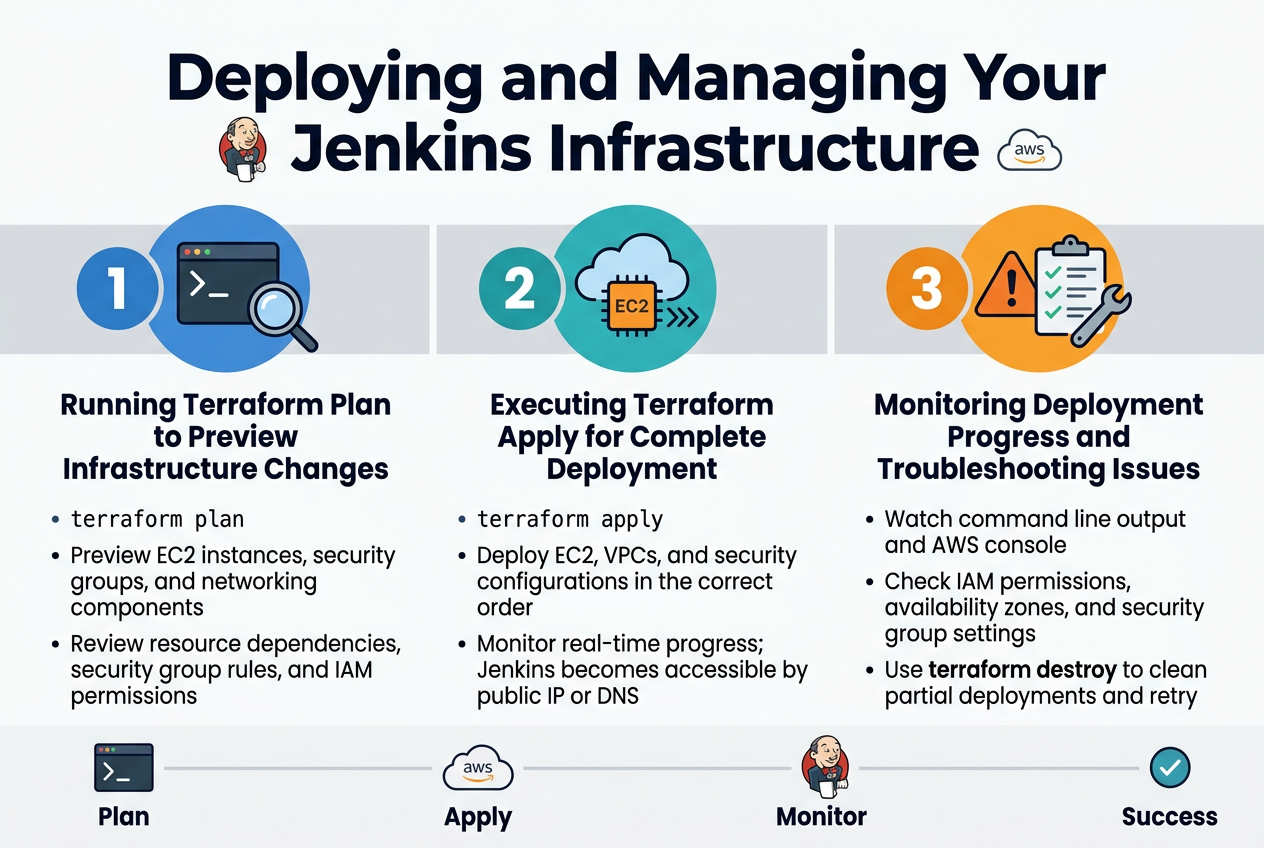
Running Terraform Plan to Preview Infrastructure Changes
Before deploying your Jenkins automation AWS infrastructure, running terraform plan gives you a detailed preview of all resources Terraform will create, modify, or destroy. This command analyzes your Terraform infrastructure as code and compares it against your current AWS state, showing exactly which EC2 instances, security groups, and networking components will be provisioned for your Jenkins deployment pipeline.
The plan output displays resource dependencies and helps catch configuration errors before actual deployment. Review the planned changes carefully, especially security group rules and IAM permissions that will govern your Jenkins AWS EC2 deployment access patterns.
Executing Terraform Apply for Complete Deployment
Running terraform apply initiates the complete Jenkins CI/CD automation infrastructure deployment on AWS. Terraform creates resources in the correct order, handling dependencies automatically while provisioning your EC2 instances, VPCs, and security configurations. The process typically takes 5-10 minutes depending on your infrastructure complexity.
Monitor the apply output closely as Terraform displays real-time progress for each resource creation. Your AWS DevOps automation setup becomes active once the apply completes successfully, with Jenkins accessible through the generated public IP or DNS endpoint.
Monitoring Deployment Progress and Troubleshooting Issues
Track your Terraform AWS integration deployment through the command line output and AWS console simultaneously. Common issues include insufficient IAM permissions, availability zone conflicts, or security group misconfigurations that can halt the automated Jenkins setup process.
If deployment fails, examine the error messages carefully and check your AWS resource limits. Use terraform destroy to clean up partial deployments before retrying, and verify your AWS credentials have proper permissions for EC2, VPC, and security group management.
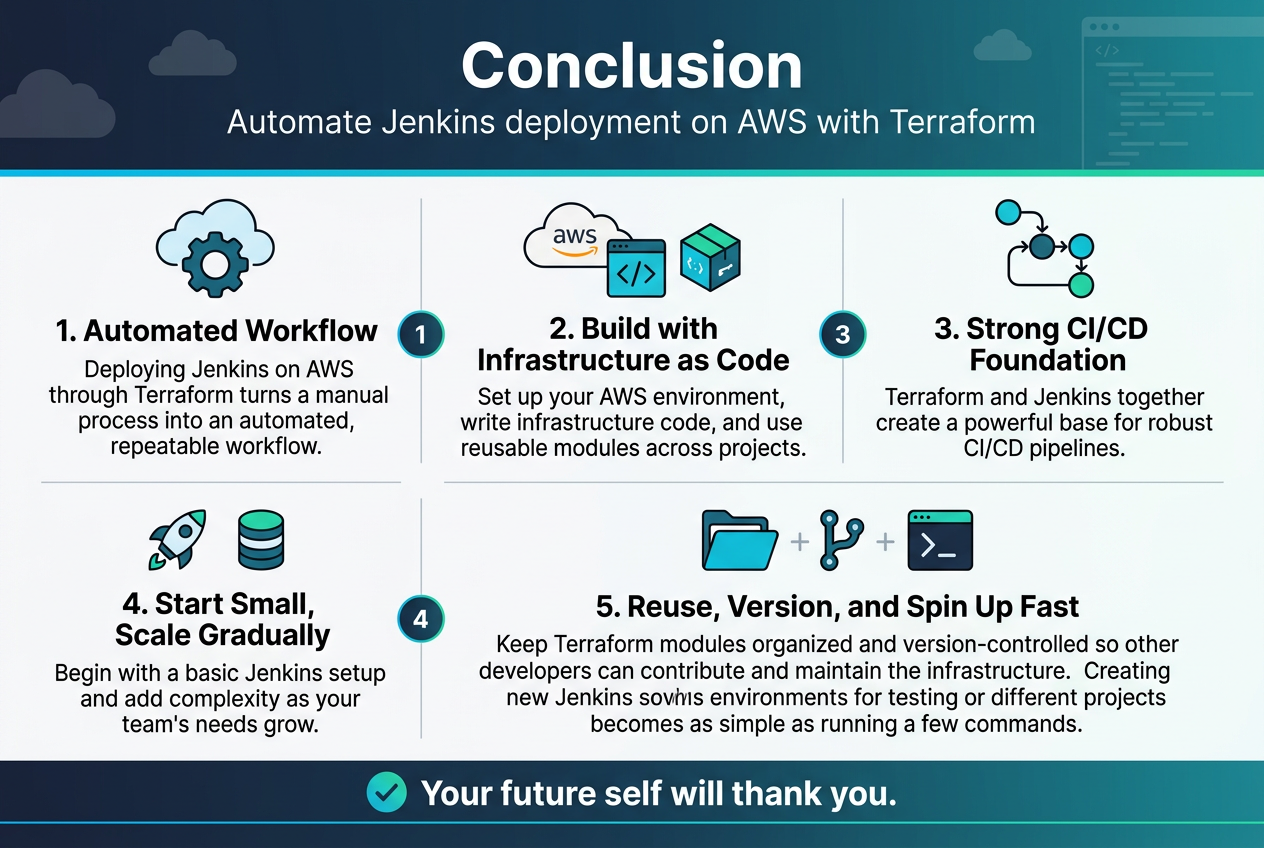
Deploying Jenkins on AWS through Terraform transforms what used to be a time-consuming manual process into an automated, repeatable workflow. You’ve learned how to set up your AWS environment, write infrastructure code, and use modules that you can reuse across different projects. The combination of Terraform’s infrastructure-as-code approach with Jenkins’ automation capabilities gives you a powerful foundation for building robust CI/CD pipelines.
Start small with a basic Jenkins setup and gradually add more complexity as your team’s needs grow. Keep your Terraform modules organized and version-controlled so other developers can easily contribute and maintain the infrastructure. With this automated approach, spinning up new Jenkins environments for testing or different projects becomes as simple as running a few commands. Your future self will thank you for taking the time to automate this deployment process properly.
The post Automating Jenkins Deployment on AWS Using Terraform first appeared on Business Compass LLC.
from Business Compass LLC https://ift.tt/5thKkGb
via IFTTT


Comments
Post a Comment